
How-to guides
Generate Calendar Events with AI
Describe the events you want in everyday language. This short walkthrough shows how to create a small schedule with Magic Generate and check it before adding it to your calendar.

When are proposed events saved?
A proposal is a preview. Check its dates, times and durations, correct the request if needed, then select Add to calendar. Saving events and publishing a shared calendar are separate actions.
Swipe across the diagram, or read the steps below.
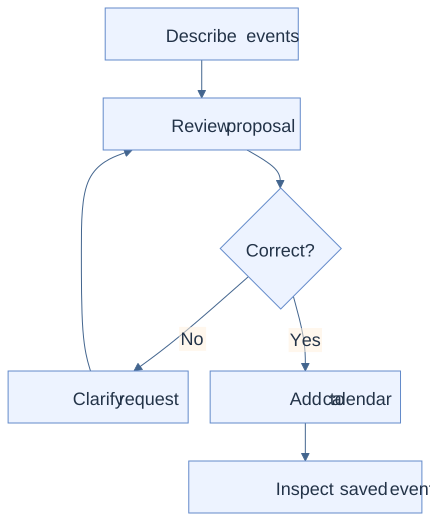
Read the workflow steps
- Describe the events and inspect the proposed dates, times, tasks and durations.
- If the proposal is wrong, clarify the request and review again.
- Only add a correct proposal, then inspect the saved events. Publish separately if needed.
The week you’ll build
This example is a starting point. Use dates and activities that fit your own week.
| Day | Time | Activity | Duration |
|---|---|---|---|
| Monday | 9:00 am | Reading | 30 min |
| Tuesday | 10:00 am | Maths | 45 min |
| Friday | 2:00 pm | Assembly | 30 min |
A prompt to try
Replace the bracketed date with the Monday of your chosen week, then paste this into Magic Generate.
For the week starting Monday [YYYY-MM-DD], create these events:
Monday 9am Reading for 30 minutes
Tuesday 10am Maths for 45 minutes
Friday 2pm Assembly for 30 minutes
Example: correct a proposal before saving
Suppose you request Reading on Monday at 9am for 30 minutes, but the proposal shows 60 minutes. Do not add that proposal. Clarify the request: ‘Reading should last 30 minutes, from 9:00 to 9:30.’ Review the new proposal before selecting Add to calendar.
This is an illustrative review example, not a transcript or a guarantee of a particular AI response. Check the actual date and every event in your own proposal.
1. Choose the calendar and week
Open School Calendar and choose New blank calendar, or open the calendar you want to update. Check its title and navigate to your chosen week.
Use the example above or replace the activities with your own. Replace [YYYY-MM-DD] with the Monday date for that week.
2. Send a clear request
Open Magic Generate and paste your request. Include the day, start time, activity name, and duration for each event.
If you have already added an event manually, leave it out of the request to avoid adding it twice.
3. Review the proposed events
Check every date, start time, activity name, and duration. Make sure the dates belong to the week you intended and that the events fit around your existing plans.
If the proposal does not match your request, clarify it in the chat and review the revised result before proceeding.
4. Add and check the schedule
When the proposal is correct, select Add to calendar. Inspect the calendar and open any event that needs a detail or time adjustment.
If you want families to view the plan, follow the publish and share guide next. Adding events does not itself publish the calendar.
Make the next week easier to see
Start with a few activities, check the details, and build from there.
Try Magic GenerateNext guide: Publish and Share Your Calendar